How to Use Green Screen in CapCut
Learning how to use green screen on capcut unlocks studio-style composites from your bedroom, office, or garage. Green screen—technically chroma key—replaces a solid-colored backdrop with any image or video you place beneath the subject layer. CapCut makes the process approachable: import keyed footage, sample the screen color, tune tolerance, and drop in a new environment. This guide covers shooting tips, lighting, chroma settings inside the app, layering backgrounds, and fixing common spill problems. Good keys start on set, not only in software, so we spend time on fabric, distance, and exposure before touching sliders. Download the latest build from our CapCut download page if you are new to the editor. Desktop editors can follow the same steps with panels arranged differently—see CapCut for PC for layout notes. Cap Cut Pro is optional for chroma key; the core how to use green screen on capcut workflow runs on free tiers for most social projects. Whether you film talking-head explainers or fantastical skits, the same layering discipline applies: subject above, world below, edges refined, lighting matched. You will see how small set changes, like ironing a backdrop or locking camera exposure, save more time than any slider inside the app. The goal is composites that survive full-screen viewing on phones, not just thumbnail previews that hide halos and spill. Creators also ask does capcut have green screen — yes, via chroma key — and can you green screen on capcut for quick bedroom studio setups.
Related: download · tutorials · features · for-pc · homepage

Green Screen Setup
A successful green screen shoot needs smooth, evenly lit fabric or paint without wrinkles, hotspots, or shadows. Hang cloth tight, stand several feet in front of it, and light the screen separately from your face. Two soft lights on the backdrop at forty-five-degree angles reduce gradients; a key light on you prevents flat, muddy faces. Avoid green clothing, jewelry with green reflections, and plants that cast color onto the screen. Shoot 1080p or higher with a modest shutter speed to limit motion blur that breaks keys later. Lock exposure and white balance so the screen color stays consistent across takes.
Portable pop-up screens work for creators who film in small apartments. Paint a wall chroma green only if the surface is smooth—texture creates dead zones the key cannot remove. If you lack space, a blue screen alternative helps when talent wears green outfits; CapCut’s chroma picker supports custom colors. Store setup photos so you can recreate lighting for episodic content. More beginner-friendly lessons live in our CapCut tutorials library alongside background removal guides for hybrid workflows.
Record test clips of ten seconds, import into CapCut, and key before committing to a long script. Adjust lights once rather than fighting a bad shoot in post. Use manual exposure and white balance on your camera app to stop the screen from shifting color between takes. Keep pets and reflective props off set—they add unpredictable color bounce.
Budget creators can start with a collapsible green screen and two LED panels; upgrade lights before upgrading cameras. Tape marks on the floor for talent position keep framing consistent across episodes. Remove reflective picture frames behind the screen—they cast color even when off camera. If you stream, key in CapCut for recorded shows but consider live OBS keys for real-time audiences.
Chroma Key
Inside CapCut, import green screen footage to the main video track. Open Effects, select Chroma key, and tap the backdrop with the color picker. Raise intensity until the green vanishes, then back off slightly so skin and hair detail return. Edge smooth and shadow sliders reduce stair-steps around shoulders. Preview at full zoom while scrubbing—keys that look fine on thumbnails often show halos on phones. If the subject moves, check whether the mask holds on outstretched arms and walking feet. Duplicate the clip before extreme settings so you can compare versions side by side.
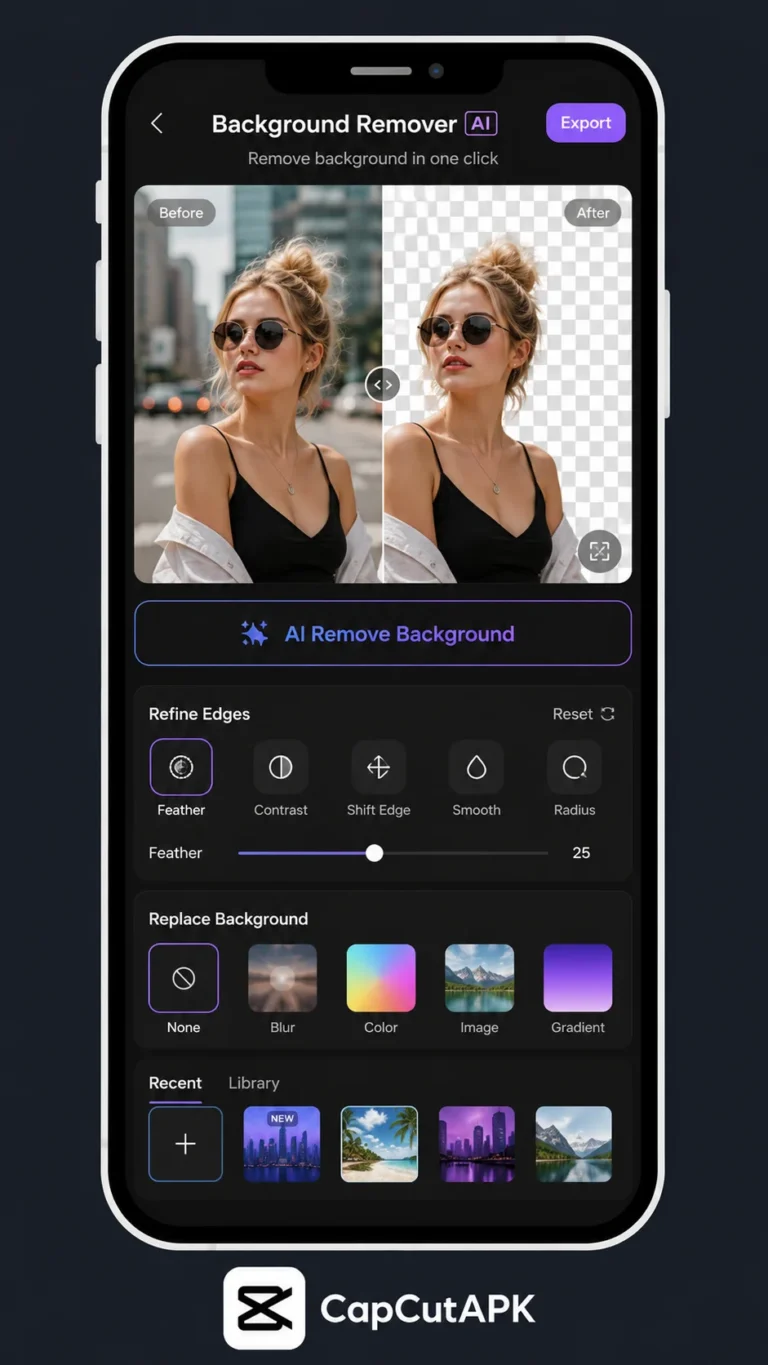
CapCut’s chroma stack pairs with masks when automatic keys miss chair legs or frizzy hair. For shots without green screen, try the AI background remover instead, but chroma remains the gold standard when you control the set. Name effect layers clearly on complex timelines. Disable chroma temporarily to compare against the raw plate when troubleshooting. Small adjustments beat maxing every slider, which introduces noise and transparent patches in clothing.
When keys fail on floor shadows, raise the screen light or add a separate floor green mat lit evenly. For streaming overlays, key once and save the project as a template with your camera feed pre-wired to the subject track.
Chroma key settings are not one-size-fits-all: outdoor plates with wind-blown hair need more feather than studio interviews in suits. Save presets by duplicating projects once you find intensity and spill values that work for your room. When CapCut updates effect names, your saved projects still hold parameters even if menus move.
Lighting
Lighting sells the composite. Match the color temperature of your background plate—cool office talent on a warm sunset beach screams fake until you tint shadows toward orange. Add a virtual rim light by brightening edges in CapCut’s adjust panel or shooting a hair light on set. Ground the subject with a soft shadow on the floor plate; even a low-opacity black oval helps. If the background shows sun from the left, turn your body slightly so facial shading agrees. Without shadow contact, subjects appear to float like stickers.
Avoid overhead room lights that cast downward shadows on the green screen; they create dark patches the key interprets as foreground. Diffusers and bounce cards are cheap upgrades over bare bulbs. When relighting in post is impossible, pick background images with forgiving soft light rather than harsh directional sun. For product demos, light the product and screen independently so metallic reflections do not pick up green.
Polarizing filters on cameras reduce sheen on glasses—another common key killer. Document light positions with a quick sketch for repeatability. If you reuse virtual sets, color-grade subjects and backgrounds together with the same LUT for cohesive series branding.
Lighting mistakes are easier to prevent than fix. If you only own one extra light, bounce it off a white ceiling to soften the screen before adding a dedicated hair light. Sunglasses and watches bounce green—angle talent slightly or accept manual mask work. Schedule shoots when daylight is stable; sun shifting through windows changes key color mid-take.
Layering
Place the keyed subject on an upper track and the new background on a lower track. Trim both to the same duration, then scale the background to fill the frame. Use position keyframes to add slow drift for cinematic feel. Foreground props filmed on green can sit between background and subject if you split layers—advanced but powerful for news-desk parodies. Mute unrelated audio on stock background videos unless ambient sound supports the scene. Keep text overlays above the subject layer so titles remain readable.
Blend modes and opacity are rarely needed for straight replacements but help when inserting graphics behind a presenter. Test safe zones for TikTok and Reels so chroma halos do not appear under platform UI chrome. When combining green screen with music, duck background tracks under dialogue as you would in any CapCut edit. Export at the highest practical bitrate; heavy compression revives edge chatter around hair.
For multi-scene videos, group background and subject pairs per scene so swaps stay organized. Preview transitions between virtual locations—hard cuts often feel more believable than dissolves unless the story demands a dreamlike shift.
Layering is your chance to sell the illusion. Add foreground elements—blurred house plants, desk edges—to create depth between subject and background. Parallax sells realism: slow background drift opposite subject movement tricks the eye. Keep platform safe zones in mind so TikTok UI does not cover keyed hairlines.
Common Fixes
Spill—green light bouncing onto skin—shows as a sickly tint on cheeks and hair. Increase spill suppression in chroma settings and add a subtle magenta tint in color correction if needed. Noise on the screen from ISO grain breaks the key; denoise lightly before keying. Wrinkled fabric creates moving shadows; smooth cloth or blur the screen slightly in camera with shallow depth only on the subject, not the backdrop. Partial transparency in clothing means fabric color matches the screen too closely—change wardrobe or lower key intensity selectively with masks.
Flicker from auto exposure on the phone camera changes screen brightness frame to frame; lock exposure during capture. If feet disappear, add a floor shadow layer rather than cranking intensity globally. When fixes fail, reshoot a short section instead of hours of rotoscoping. Pair this guide with our background removal article for hybrid workflows—AI touch-up after chroma saves difficult hair shots without restarting.
Keep a checklist on set: smooth screen, even light, subject separation, locked exposure, no green wardrobe. Five minutes of prevention beats fifty minutes of mask painting. Archive both raw green plates and final composites so you can rebuild edits if CapCut updates effect names.
When common fixes fail, change one variable at a time: spill, feather, intensity, wardrobe. Resist maxing every slider simultaneously or you lose diagnostic clarity. Pair this workflow with AI touch-up on hair after chroma for hybrid results. Document your fixed setup with photos so six months later you can rebuild the same look without guesswork.
Frequently Asked Questions
Download CapCut Mod APK
Master how to use green screen on capcut with premium tools unlocked. Download CapCut Mod APK.