CapCut Auto Captions — Setup Guide
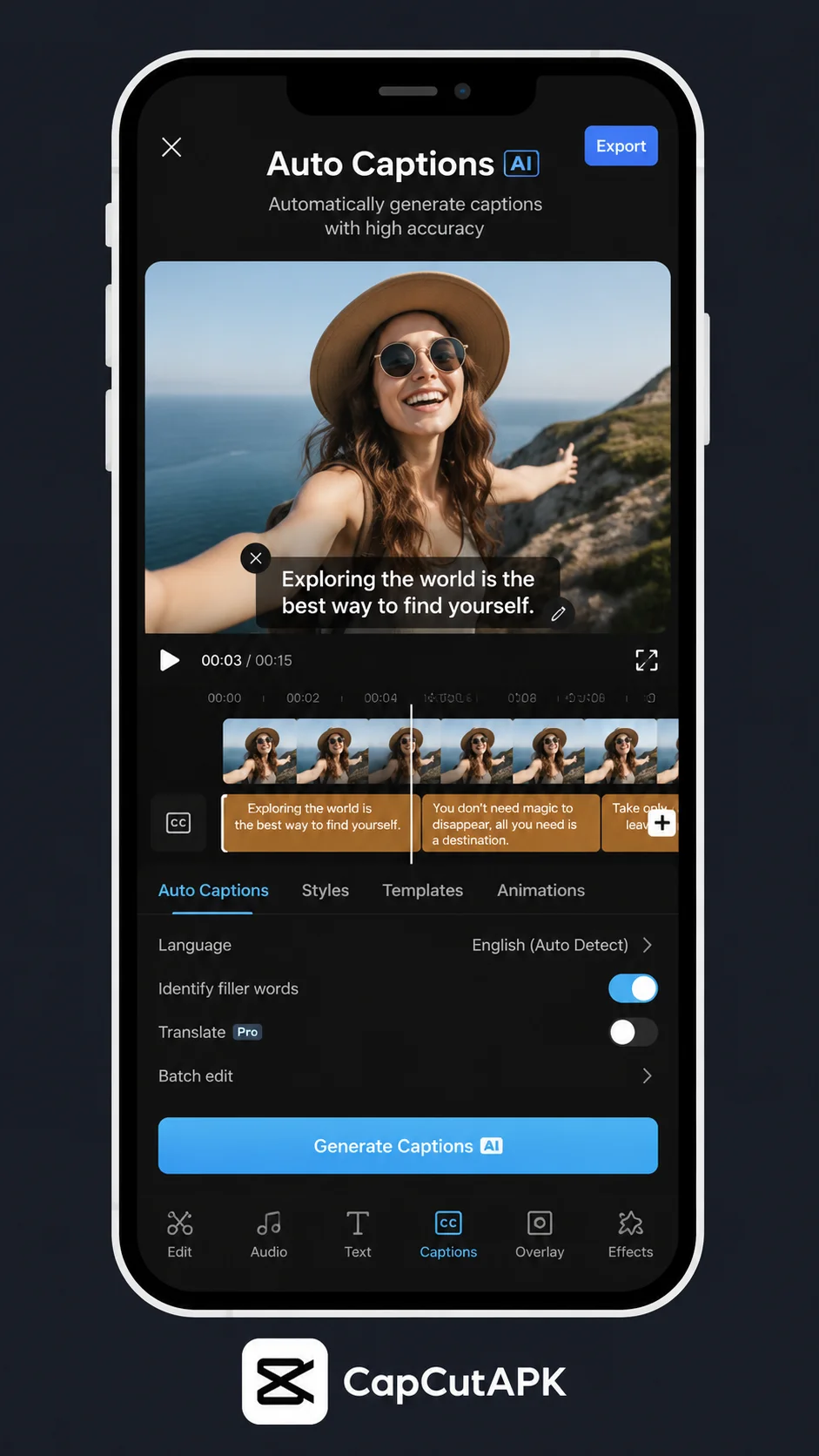
CapCut auto captions can dramatically improve watch time, accessibility, and comprehension, especially for audiences who view videos with sound muted. But one-click captions are only the starting point; real quality comes from clean audio prep, transcript correction, readable styling, and timing refinements that match speech rhythm. This article walks you through that full workflow so captions look intentional instead of machine-generated. Begin by updating from CapCut download to ensure caption menus and language options are current. Then use examples from CapCut tutorials for editing context, and consult CapCut for PC if you need faster text correction on desktop. By the end, you will know how to generate accurate subtitles, fix recognition mistakes quickly, style captions for mobile readability, and export projects where captions strengthen your message rather than cluttering the screen. You will also get a practical correction routine for names, numbers, and technical terms that auto-caption engines often miss, plus style and timing rules that keep subtitles readable during fast cuts.
Prepare Audio Before Caption Generation
Caption accuracy starts with audio quality, not software magic. Reduce background noise, normalize speaking volume, and trim empty segments before running auto captions. Cleaner input gives the engine clearer phonetic data and reduces correction time later.
If multiple speakers overlap, separate sections manually where possible so captions map to one voice at a time. Overlapping dialogue confuses segmentation and punctuation. Clear speaker flow improves both recognition and viewer comprehension.
Check language settings before generating. Wrong language selection can produce nonsense text even on clear audio. This quick preflight step is easy to miss and can waste significant editing time if skipped.
Generate Captions and Correct Errors
Run auto captions after your primary cut is locked to avoid redoing text for deleted segments. Once generated, scan for proper nouns, brand names, and numbers first because these are common failure points. Correcting high-impact words early protects meaning even if minor punctuation remains.
Edit captions in short passes instead of attempting a perfect transcript in one sweep. First pass for factual accuracy, second for grammar, third for rhythm. Layered review reduces fatigue and catches more errors than one long correction session.
Use playback while editing text so you can hear sentence boundaries naturally. Silent proofreading misses timing issues where captions switch too early or too late. Captions should feel synchronized to spoken intent, not just word matching.
Style Captions for Legibility
Choose caption styles that prioritize readability under compression: bold-ish sans-serif fonts, clear stroke, and strong contrast. Fancy typography may look artistic in editor preview but often fails on fast-moving backgrounds and low-brightness screens.
Keep line length controlled so viewers can read quickly without losing the visual narrative. Two short lines are usually better than one long line stretching across the frame. Brevity improves scanning speed and reduces cognitive load.
Position captions away from platform UI overlays and important visual details like product labels or faces. Safe placement is part of caption quality, not an optional afterthought. A perfect transcript is useless if viewers cannot see it.
Refine Timing and Emphasis
Timing adjustments can make captions feel human-edited. Shift boundaries so each caption appears just before or at the spoken phrase, then disappears at natural pause points. Proper pacing helps viewers read comfortably while following visuals.
Use selective word highlighting for emphasis rather than animating every line heavily. Subtle emphasis can reinforce key ideas, hooks, or calls to action. Over-animated captions distract from speech and reduce trust in educational content.
For rapid dialogue, split dense lines into smaller caption units even if grammar becomes slightly simplified. Readability in real-time matters more than preserving exact transcript formatting in short-form contexts.
Scale Caption Workflows Efficiently
If you publish regularly, create reusable caption presets for font, color, spacing, and vertical position. Standardization cuts repetitive setup time and gives your channel a recognizable visual system across episodes.
Maintain a correction glossary for recurring brand names, technical terms, and multilingual phrases that auto captions frequently misread. Reusing approved wording speeds editing and keeps terminology consistent.
Run final QA by watching with sound off. This perspective reveals whether captions alone carry the message clearly. Sound-off testing mirrors real viewer behavior and is one of the best ways to improve accessibility performance.
Frequently Asked Questions
Download CapCut Mod APK
Master capcut auto captions with premium tools unlocked. Download CapCut Mod APK.