How to Blur Faces in CapCut for Privacy
If you publish street footage, school events, customer clips, or family content, understanding how to blur faces in capcut is essential for responsible editing. Face blur is not only a visual effect; it is a privacy safeguard that helps protect identities without discarding useful footage. In this walkthrough, you will learn how to choose between circular masks, mosaic overlays, and tracked blur layers, then keep the blur locked to moving subjects frame by frame. Start by installing the latest editor from CapCut download so mask and keyframe tools match current UI. For supporting methods like keyframes and timeline control, review CapCut tutorials, and use CapCut for PC if you need frame-accurate adjustments on a bigger monitor. By the end, you will have a repeatable privacy workflow that keeps faces concealed even during fast motion, zooms, and scene changes. The process also covers difficult cases like reflections, crowded scenes, and sudden movement where weak masking usually fails. These checks are built for creators who need privacy reliability, not just visual approximation. This also answers how to blur faces on capcut in crowded scenes where automatic face detection needs a manual mask pass.

Pick the Right Blur Technique
Different footage needs different concealment methods. A simple static interview may only require one soft blur mask, while crowded walking shots often demand mosaic overlays with frequent keyframes. Choosing the method early saves correction time later and prevents half-protected exports.
Use heavier blur for legal or safety-sensitive content where recognition must be impossible. For casual background passersby, moderate blur may be enough if the face remains indistinct at pause. Your goal is practical anonymity, not just an obvious effect.
Test one sample segment before editing the full timeline. If the mask shape fails during turns or camera shakes, switch techniques immediately. Early method validation is faster than redoing twenty clips after final assembly.
Build and Position Blur Layers
Create a dedicated blur layer above the source clip so privacy control stays independent of color grading and transitions. This separation makes troubleshooting simpler because you can toggle the mask on and off without affecting the base footage.
Size masks slightly larger than the visible face to account for minor movement between keyframes. Tight masks often expose edges during quick turns. A little buffer is safer than constant micro-adjustments every few frames.
Keep blur opacity and intensity consistent within the same scene. Sudden changes in blur strength draw attention to identity areas and can look accidental. Consistency communicates that concealment is intentional and reliable.
Track Motion With Keyframes
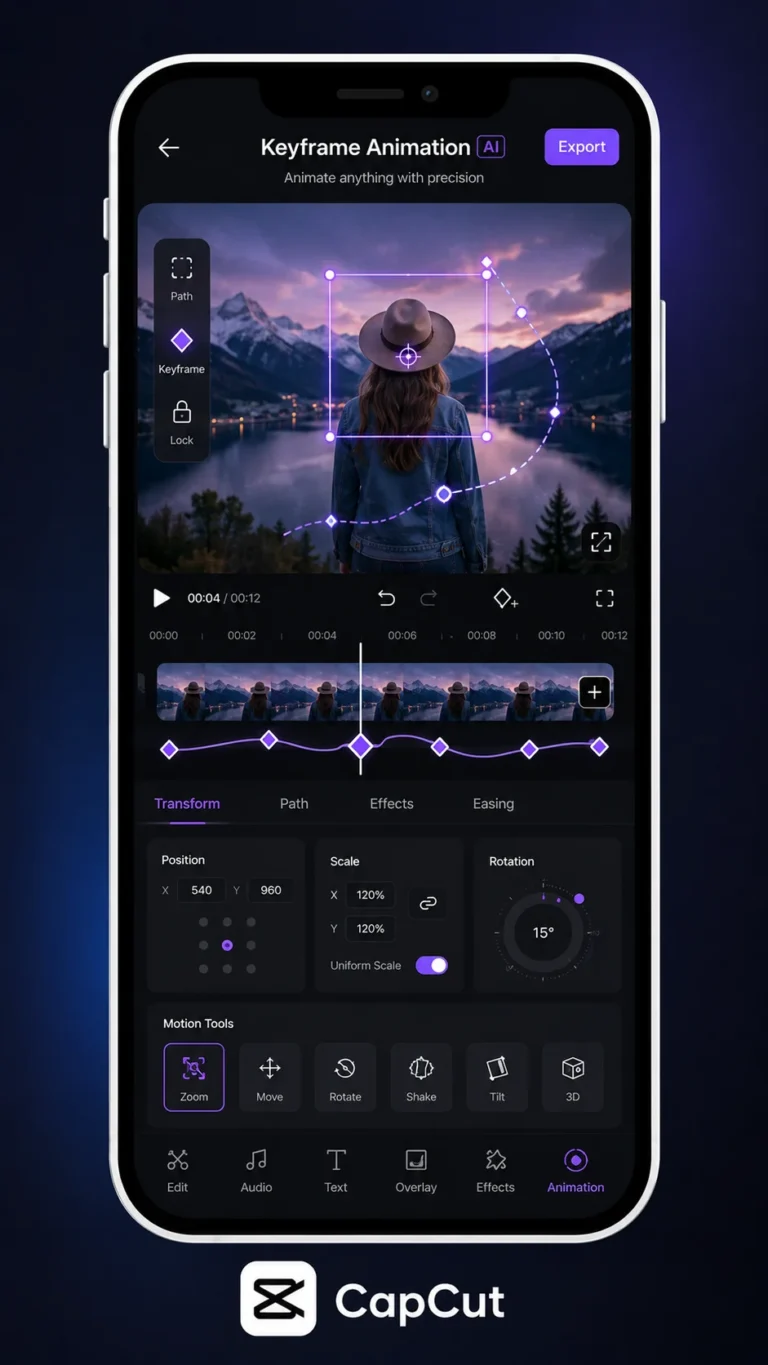
Manual tracking is still the most dependable approach in mixed lighting or crowded frames. Place keyframes at direction changes, speed shifts, and camera pans instead of adding points on every frame. Smart keyframe spacing reduces workload while keeping coverage stable.
When the subject exits and re-enters frame, split the blur layer and restart tracking on the new segment. Continuous keyframes across gaps often produce jumps that reveal faces briefly. Segmenting by movement pattern keeps control predictable.
Zoom into the preview while tracking and scrub at reduced speed for precision. Small alignment errors are hard to see at normal playback but become obvious when viewers pause. Precision during tracking is the difference between privacy and exposure.
Handle Challenging Scenes
Low light, fast sports motion, and partial occlusion are common failure points. In those cases, increase blur radius and expand mask boundaries rather than chasing tiny facial landmarks. Broader concealment is usually safer than perfect shape matching.
If multiple faces overlap, separate each person onto independent blur layers when possible. Shared masks become unstable as subjects cross paths. Independent layers allow targeted fixes without breaking concealment for the entire group.
For shots with reflections in mirrors or windows, blur both the subject and reflected face region. Editors often miss secondary reflections, which can defeat otherwise strong privacy masking. Always inspect frame corners and reflective surfaces before export.
Run a Privacy Assurance Pass
After editing, watch the full project once for storytelling and once specifically for privacy leaks. During the privacy pass, ignore aesthetics and check whether any recognizable frame slips through. A single missed frame can undermine the entire purpose.
Pause randomly at several timestamps, especially during transitions and camera motion. Faces can reappear for a fraction of a second when blur layers are trimmed too tightly. Random spot checks catch issues linear playback may miss.
Export a draft and review it outside the editor where compression and scaling differ. Some masks appear weaker after platform processing. Final verification in a real-viewing environment is mandatory for sensitive footage.
Frequently Asked Questions
Download CapCut Mod APK
Master how to blur faces in capcut with premium tools unlocked. Download CapCut Mod APK.