CapCut Transitions — How to Add Them
A strong capcut transitions tutorial should teach more than where the transition button lives; it should show when transitions improve storytelling and when they hurt pacing. Many new editors overuse flashy presets, then wonder why retention drops after the first few seconds. In this guide, you will learn how to plan cut points, choose transition families by content type, match audio movement to visual shifts, and build reusable transition patterns for faster publishing. Make sure you are on the latest version from CapCut download before following along, because menu placement changes over time. If you want deeper examples, the CapCut tutorials hub covers keyframes and speed tools that pair well with transitions, and CapCut for PC helps with precision edits on desktop. By the end, you will be able to create scene changes that feel intentional, rhythm-aware, and platform-ready. You will also learn how to avoid transition overload, how to pair sound design with motion shifts, and how to create reusable transition patterns so episodes feel consistent without looking repetitive. Once you understand transitions in capcut, you can layer how to do transitions in capcut techniques without slowing down retention on Shorts.

Plan Cut Logic Before Effects
Transitions cannot rescue weak sequencing. Start by arranging clips so each cut has a clear narrative reason: time shift, location change, emphasis, or contrast. Once that structure works with hard cuts alone, transitions become polish rather than patchwork.
Watch your rough cut without music first. If the story flow is understandable, you have a strong base for adding motion between scenes. If not, re-order clips before adding any visual effects. Solid editorial logic always beats decorative complexity.
Mark high-energy and low-energy zones in your timeline. This map helps you decide where transitions should be punchy, subtle, or absent. Contrast in transition intensity keeps viewers engaged across longer sequences.
Choose Transition Types Strategically
Use simple dissolves for mood shifts, directional swipes for movement continuity, and quick zoom transitions for impact moments. Matching transition style to clip content makes edits feel coherent. Random style switching, even with premium presets, often feels amateur.
Duration is as important as style. A transition that lasts too long can flatten momentum, while one that is too short may read as a glitch. Test timing at normal speed and again in full-screen playback to confirm perceived smoothness.
Limit your palette to a few repeatable transition types per video. A restrained set builds visual identity and prevents the project from looking like a preset demo reel. Consistency is especially valuable for channels with weekly episodes.
Sync Transitions to Audio Movement
Great transitions feel musical even in non-music content. Align scene changes to beat accents, phrase endings, or sound design cues so motion feels grounded in rhythm. This alignment increases perceived polish without adding extra effects.
Add whooshes, rises, or subtle impacts only where they support specific visual changes. Flooding every transition with loud SFX creates fatigue quickly. Targeted sound cues are more effective than constant sonic clutter.
If a transition looks good but feels wrong, inspect audio timing first. Moving the effect by a few frames can fix awkwardness instantly. Many transition issues are rhythm problems disguised as visual problems.
Blend Custom Motion Transitions
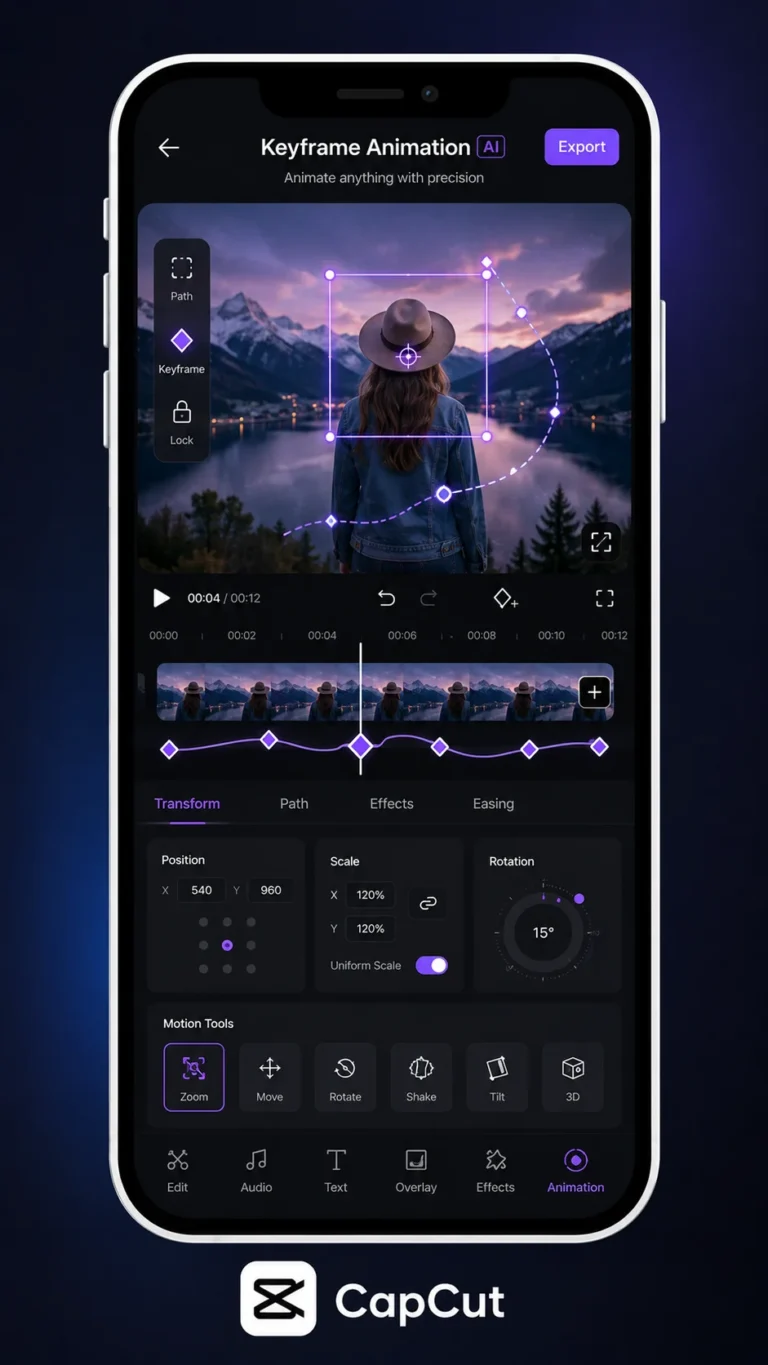
Preset transitions are fast, but custom motion transitions offer stronger brand control. Build them with keyframed scale, position, blur, and directional movement across two clips. Even a basic manual whip can look more original than stock libraries.
For custom transitions, overlap clip tails and heads intentionally so movement vectors match. When one clip exits left, make the next enter from compatible direction for continuity. Directional logic makes transitions feel physically believable.
Save successful custom setups as mini templates by duplicating timeline segments into a reference project. Reusing your own motion language speeds production and differentiates your content from generic template-heavy edits.
Quality Check and Export
Before export, watch transitions at 100 percent scale and on the smallest screen your audience uses. Artifacts, frame blending errors, and abrupt cuts often appear only on phone playback. Device-based QA prevents embarrassing post-upload fixes.
If export stutters around heavy transition zones, reduce concurrent effects on those clips. Complex stacks of blur, color, and speed can overload mobile hardware. Simplifying one element usually restores smoothness without sacrificing style.
Document your best transition timing ranges and audio pairing rules. A transition playbook helps teammates maintain quality and keeps your own edits faster over time. Process clarity beats last-minute experimentation when deadlines are tight.
Frequently Asked Questions
Download CapCut Mod APK
Master capcut transitions tutorial with premium tools unlocked. Download CapCut Mod APK.